Programming ecosystem II
In this lecture, we'll take a survey into the basic motivation and principles of the Maven build system. We'll learn why good software includes explicit build instructions, how maven dependencies are configured and resolved at runtime, how build plugins allow configuring a custom build process, and how build profiles are used to configure software variants.
Lecture upshot
Build systems consume an explicit project configuration file, to enable fast and reliable construction of deliverables.
Illustration
When you bake a cake you usually start with a recipe, i.e. written instructions to tell you:
- What ingredients you need. (Can be a prepared mix)
- How to prepare the cake (order of ingredients, oven temperature, duration, etc...)
- Optionally: Description of variants (replace the icing sugar with stevia, replace the milk with soy-milk for a vegan variant etc...

Recipes, from an engineering perspective
Recipe are build instructions. A recipe tells you what to get and how to combine components, so you reach a desired outcome.
Software build recipes
We would probably all agree that holding precise instructions with the above three elements is preferable to merely finding a chaotic pile of ingredients.
- Ideally, building software is like following a recipe : We want clear instructions on the ingredients needed, how to prepare the dish, and optional variants.
- Throughout this unit we'll look at a further programming ecosystem component to ensure a structured, explicit build
process: Build systems.
In detail we'll learn about:- ... configuration based dependency management to get the software ingredients.
- ... build system plugins, to configure the exact build process, to prepare our software dish.
- ... build profiles, to configure and select between different software preparation variants with the flip of a switch.
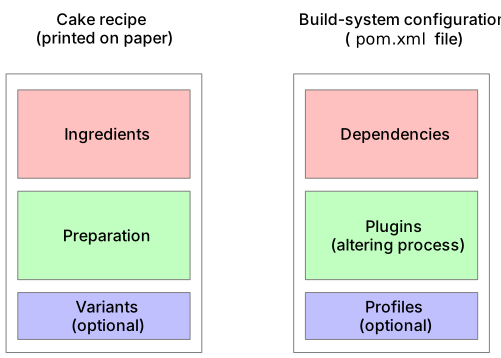
Maven projects
- In the context of this course we'll be working exclusively with Maven, the most widespread build system for the Java ecosystem.
- Maven provides us with two essential components:
- A standardized format, for writing our recipe: the
pom.xmlfile. - A command line tool, being able to consume the recipe automatically (and build our software).
- A standardized format, for writing our recipe: the
Before we start looking into the details of specifying ingredients, preparation and variants, we take a first short look at technical requirements for using Maven.
Maven project layout
- Maven projects stipulate a specific internal structure:
- A
pom.xmlfile (the recipe) - A
srcfolder, containing our software source code.
Within thesrcfolder, maven distinguishes between production and test code:src/main/java: production codesrc/test/java: test code
- A
Note: the sources should always be organized into packages, and the packages are likewise reflected as folders in the project structure.
So a minimal Hello World project's folder structure, with a project package ca.uqam.info would look like this:
MavenHelloWorld/
├── pom.xml
└── src
    ├── main
    │   └── java
    │        └── ca
    │            └── uqam
    │                └── info
    │                    └── App.java
    └── test
        └── java
            └── ca
                └── uqam
                    └── info
                        └── AppTest.java

12 directories, 3 files
Maven projects impose their own structure
Switching from standard to maven projects can be a bit tedious, because maven expects a specific structure and will not find software components if your project's structure deviates.
Maven Hello World
We do not need to create the project structure manually, we can use a maven command to initialize a new project:
  mvn archetype:generate \
  -DgroupId=ca.uqam.info \
  -DartifactId=MavenHelloWorld \
  -DarchetypeArtifactId=maven-archetype-quickstart \
  -DinteractiveMode=false
Note: Some systems (windows) cannot handle multi-line commands. Remove the
\and place everything in a single line.
Let's take apart the above command:
archetypetranslates to "we want to use a project template"- There are different archetypes, for different purposes. E.g. for a webapp, or server backend we would have used a
different
archetypeArtifactId.
- There are different archetypes, for different purposes. E.g. for a webapp, or server backend we would have used a
different
- Similar to any dependencies you might need, your own software should have a unique identifier. Other developers might
actually end up using your software as a library!
groupIdrepresents an organization specific string, usually this is just the revered domain name of the company you are working for. Since we are all at UQAM's computer science department we useca.uqam.infoartifactIdstands for the software you are building. It should be a descriptive name, indicating what your software does.
Initial App class
The initial pom file is just a stub HelloWorld class:
package ca.uqam.info;

/**
 * Hello world!
 *
 */
public class App {
  public static void main(String[] args) {
    System.out.println("Hello World!");
  }
}
Package structures
Notice how the initial groupId argument has affected to project's package naming and internal folder structure ?
Initial pom file
The initial pom file looks, as created by the as follows:
<project xmlns="http://maven.apache.org/POM/4.0.0" xmlns:xsi="http://www.w3.org/2001/XMLSchema-instance"
         xsi:schemaLocation="http://maven.apache.org/POM/4.0.0 http://maven.apache.org/maven-v4_0_0.xsd">
    <modelVersion>4.0.0</modelVersion>
    <groupId>ca.uqam.info</groupId>
    <artifactId>MavenHelloWorld</artifactId>
    <packaging>jar</packaging>
    <version>1.0-SNAPSHOT</version>
    <name>MavenHelloWorld</name>
    <url>http://maven.apache.org</url>

    <dependencies>
        <dependency>
            <groupId>junit</groupId>
            <artifactId>junit</artifactId>
            <version>3.8.1</version>
            <scope>test</scope>
        </dependency>
    </dependencies>
</project>
We already see a first dependency entry, namely for junit.
- In the spirit of good software development, maven assumed that we will test our software.
- However, junit is not part of standard java. Hence, we need a dependency block.
Anything peculiar about the dependency block ?
The junit dependency block actually has an additional <scope>test<scope> entry. This is because maven makes a distinction between dependencies needed to build a software, VS dependencies needed to run a software. Junit is not needed at runtime, therefore maven added an additional test scope tag.
Building with maven
Let's use maven to build the project, that is, create java bytecode. The corresponding command is mvn compile.
-
The first time you run
mvn package, we'll actually see how maven downloads junit (our first dependency).- There will be some logging messages:
-
Once the command is finished, we'll find a new directory
target, with the following content: -
Among others, this is exactly the same outcome as we could have created manually, using the java compiler:
- A jar file
- Class files for our source code
Don't share target
Everything in the target directory is generated by Maven. In return this means we do not need to share the target directory (e.g. as part of a git repo). The point of a build system is to make the build process so easy, anyone can fast and reliably generate a project build on their own.
Dependency management
We'll start with the red box in above figure:
- For cake, ingredients refer to what you need to organize before getting started with the baking. Usually flour, sugar, butter, milk, ...
- For software, dependencies refers to other software (libraries) you call from your code.
How do you integrate and use libraries again ?
In the previous lecture we've learned that most libraries must be downloaded as JARs, actively placed on the classpath, and have their packages imported. Only then Java is able to actually use the invoked library.
Manual dependency management
JARs are a straightforward way to pass around functionality, but as projects grow, several issues tend to persist:
- The more dependencies you have, the more JARs you carry with you.
- Where to store the JARs? In the repo? What if you need the same JAR in multiple projects, do you store them twice?
- Everytime a new developer joins the project you need to pass on all the JARs and have them manually extend their classpath.
- Just compiling your project becomes somewhat tedious, because you always have to check a long list of dependencies are correctly installed.
- The client complains that your software is not running. Most likely they overlooked to install a JAR, or installed the wrong version. How do you find out which one it is?
- A JAR is a snapshot, it is one fixed version.
- What if a security vulnerability was found in a JAR you've downloaded. How would you know?
- You lost a JAR that you need to build your project, where do you find it again? Which version was it again that works with your project?
A true horror story
In a previous research lab we had a software that was particularly hard to work with.
Before a developer could even write a single line of code, they needed to spend at least 30 minutes to 1 hour of manual project configuration.
The project had even JARs where no-one knew where exactly they came from, whether they were still needed, or what exactly they were contributing.
There was some rumor of some intern who once was around 3 years ago, who had created the JARs.
But the intern was long gone and no one had contact information. At the same time these were fat software artefacts that bloated up our software executable.
Countless developer hours were wasted, because of poor dependency management.
I'll also refer to this form of dependency management as "implicit", meaning the JARs needed to build a project are implicitly there, i.e. they're artifacts mingled with other project components.
Descriptive dependency management
Explicit dependency management aims to eliminate all aforementioned issues by rather specifying which dependencies exist (and where to get them), instead of manually managing JAR files.
In essence, the requirements for using any dependency management tool are:
- An online repository, systematically archiving all versions of all libraries
- A local configuration file, describing for every dependency:
- A unique identifier, e.g. "Google GSON library"
- The specific version, e.g. "2.11.0"
Advantages:
- Configuration files are textual and lightweight. They can be stored in the project itself.
- Configuration files are written in a machine-interpretable syntax. A tool can collect all dependencies for you and even modify the classpath when needed.
- You have a clear trace of all exact dependency versions. You can easily scan your project for security vulnerabilities.
- No damage is done if you lose a library JAR, you can easily retrieve it again from the repository.
Dependency management with Maven
Maven is a build system for Java that offers exactly these two components:
- A central repository, with almost every java library ever created: mavencentral.org
- A project configuration file that (among others) lists all project dependencies:
pom.xml- POM stands for "Project Object Model"
- XML is a machine-readable file format
- A dependency is stated as:
Instead of ourselves downloading JAR files and placing them on the classpath, we ask maven to ensure all listed dependencies are in place.
Never ever
Never ever manually interfere with dependency management in maven-ready project. If you need an additional library, edit the pom.xml, but never-ever drag-and-drop a JAR file into your project, or edit the classpath.
Repositories
The local repository:
- Maven also maintains a local repository on your computer, the
~/.m2directory. Every library you ever used is cached in this directory. - The local repository has two purposes:
- Performance: It is faster to reuse a cached JAR file, than to download it from the internet every time
- Offline mode: You might not be online all the time. With the dependencies cached, you can develop without an internet connection
Third party repositories:
- You might encounter situations where you need a library that is not in the official maven central repository.
- Examples:
- Libraries that are not free to use, and therefore not publicly accessible
- Your own libraries, that you do not want to upload
- Anyone can set up their own repository
- An online repository is just a few files accessible over an HTTP webserver
- However, by default maven does not know about third-party repositories. If you want maven to search your own
repository, you need to edit the
pom.xmlfile and indicate the location of your third party repository..
Mavens dependency resolve algorithm
To build a project, maven tries to satisfy all dependencies with corresponding artifacts (the JAR files, and some metadata). To satisfy a dependency, maven will:
- First check the local
.m2repository for a cached file. - If not cached, it will check if any thrid-party repo is defined. (Usually there are none defined)
- Contact the official maven repository servers to retrieve the needed artifact
flowchart LR
    resolve[\Resolve depdendency/]
    resolve --> localcheck{Artifact in local repo ?}
    localcheck -.  yes .-> done([Success])
    localcheck ==>|no| remotecheck{3rd party repo defined ?}
    remotecheck -.  yes .-> 3rdpartycheck{Artifact in 3rd party ?}
    3rdpartycheck -.  yes .-> done
    3rdpartycheck -.  no .-> centralcheck{Artifact in central ?}
    remotecheck ==>|no| centralcheck
    centralcheck ==>|yes| done
    centralcheck -.  no .-> fail([Fail])
What happens when a project is built for the second time ?
Maven will already have all dependencies cached. It will take the topmost path.
Running Maven artifacts
Running the generated artifacts is almost identical to running manually created binaries.
Class files
We can without issues run the generated class files. Note however, that we must be at the package structure's root to call our program:
-
Calling
App.classprogram from wrong location: -
Calling
App.classprogram from package root location:
Lifecycles, phases and plugins
Lifecycles can be seen as standard procedures, common to preparing any dish.
To stay in our initial example, we can imagine there's some common phases for preparing a cake:
- Clean the surfaces
- Go through the default preparation steps: Mix the dough, heat the oven, fill the dough into a spring form, bake and wait, decorate the cake.
Lifecycles
Quite similarly, building software has a few standard sequences of phases.
- In the context of maven, these standard sequences of phases are called "Lifecycles".
- Maven offers three built-in lifecycles. Each lifecycle serves a build-related macro-interest:
clean- wipe everything generatedbuild- create a new artifact, based on the sourcessite- send a previously built artefact to a server
(this one is not to be confused with git servers, the interest ofsiteis to share an executable or other build outcome, not the source code!)
However, keep in mind:
- Each lifecycle brings its own set of phases.
- Phases within a lifecycle are ordered: there is a clear sequence of phases.
- Phases within a lifecycle are immutable: no new phases can be added.
Clean
The "clean" lifecycle is the simplest lifecycle, it only has one phase:
- Phase
clean: Delete thetargetfolder.
We can see this phase as equivalent to wiping the kitchen surfaces. We don't want any breadcrumbs of previous baking adventured when preparing our new cake.
Why is it sufficient to delete the target folder ?
Maven generates all of its output into the target folder. Removing target is a guarantee to start with a clean slate.
Default
The "default" lifecycle is the one most interesting for building software:
- Phase
validate: Verify project structure and meta-data availability - Phase
compile: Compile the source code - Phase
test: Run unit tests - Phase
package: Pack compiled files into distributable format file (e.g. JAR) - Phase
verify: Run integration tests - Phase
install: Install generated artifact in local repository (.m2folder) - Phase
deploy: Send generated artifact to remote repository, if configured.

What's the interest of clean
Artifacts from previous builds are not necessarily wiped by later builds, especially not when the builds do not invoque equivalent phases. Example: If you first package, then compile, the jar files created exclusively by the previous build still linger and may net reflect the same program state. An additional clean on the second build makes sure all build artifacts stem from the most recent build process.
Site
The site lifecycle allows you to automatically send a generated project website to a server.
- Phase
site: Generate documentation - Phase
site-deploy: Send documentation to server
Site has no further relevance for this course.
Invoking phases
- Maven commands always specify phases, not lifecycles.
- When specifying a phase, e.g.
mvn package...- All phases of the lifecycle until (and including) that phase are executed, in order.
- Any remaining phase of the lifecycle is skipped.
Example: mvn package executes all the following phases, in order:
validatecompiletestpackage

Why not call mvn package clean ?
While valid, the resulting phase order would be:
1. validate
2. compile
3. test
4. package
5. clean
The last phase would eliminate (almost) all previous effort, for the jar file generated would be immediately deleted. Most likely this is not what you want.
Plugins
- Plugins are a mechanism to add additional comportment to, or modify default comportment of a specific lifecycle phase.
- Every plugin has a default phase it attaches to, however we can manually override the targeted phase.
Illustration:
- The
JavaDocplugin allows creating HTML files, based on the JavaDoc comments found in the source code - We can attach the plugin to the
packagephase. - If we do so, calling
mvn package(or any later phase of the default lifecycle) will trigger the plugin. - We'll then find HTML documentation in the
targetdirectory.

Why does mvn clean compile not generate any JavaDoc?
The javadoc plugin is associated with the package phase. clean only wipes target and compile only executes the default lifecycle's phases validate + compile. The plugin-associated package phase is never executed, thus javadoc is not generated.
Defining plugins
Back to our original comparison of cake recipes and build configurations, we'll now take a look at the plugins section of the pom.xml file.
Each plugin is a short (or sometimes not so short) snippet in a dedicated plugins section of the pom.xml. There can be
as many plugins as you want in the pom.xml:
<project>
    <build>
        <plugins>
            <!-- First plugin details -->
            <plugin>
                ...
            </plugin>
            <!-- Second plugin details -->
            <plugin>
                ...
            </plugin>
            ...
        </plugins>
    </build>
</project>
Common plugins
There are tons of plugins for modifying the build process, but the most relevant for standard java projects are:
- Checkstyle: Enforces standardized code formatting (and cyclomatic complexity limits).
- JavaDoc: Enforces complete documentation of methods and classes.
- PMD: Linter enforcing absence of vulnerable code.
- Surfire: Advanced configuration for test execution.
- Exec: Configures launcher information for direct run of compiled classes.
- Jar: Configures construction of target jar, e.g. including launcher information into MANIFEST.
In the following we'll take a look at the exec, jar and javadoc plugin.
Exec
The exec plugin lets you specify a main class for your code, that should be called by default when the code is
executed.
- This is closest to the infamous green triangle ("
▶ ") - All you need to do is point to the main class to be called on execution:
<!-- Specify main class for exec goal -->
<plugin>
    <groupId>org.codehaus.mojo</groupId>
    <artifactId>exec-maven-plugin</artifactId>
    <version>1.6.0</version>
    <executions>
        <execution>
            <goals>
                <goal>java</goal>
            </goals>
        </execution>
    </executions>
    <configuration>
        <mainClass>full.package.name.YourMainClassLauncher</mainClass>
    </configuration>
</plugin>
Once the plugin defined, you can conveniently run your program with: mvn clean compile exec:java
Add an IDE maven run configuration
Once the exec plugin defined in your pom.xml, modify the IDE's "Run Configuration" (a.k.a. what is called when the green triangle is clicked) to simply call maven's exec plugin!
Maven Jar
The Maven jar plugin allows you to add additional information when your program is packaged into a JAR.
- Previously we've seen that a maven produced JAR cannot be launched, without explicitly stating the main class
- The
maven-jar-pluginallows you to provide a default information, on which main class should be listed in the JAR's manifest.
<!-- specify main class for JAR manifest-->
<plugin>
    <groupId>org.apache.maven.plugins</groupId>
    <artifactId>maven-jar-plugin</artifactId>
    <version>3.2.0</version>
    <configuration>
        <archive>
            <manifest>
                <mainClass>full.package.name.YourMainClassLauncher</mainClass>
            </manifest>
        </archive>
    </configuration>
</plugin>
JavaDoc
In the second lab session you've learned a command to manually extract all JavaDoc information from your code, to generate a human-readable website. The JavaDoc plugin lets you automatize this step, as standard component of the build process.
- Enabling the JavaDoc plugin is also a good practice, as you directly see whether there are issues in your code style, whenever you compile your code.
- Ideally the plugin is configured to fail on warnings, so no developer is ever tempted to work with or produce
undocumented code
- "I'll document that later", easily turns into "I'll document that never."
<!-- Plugin to ensure all functions are commented and generate javadoc -->
<plugin>
    <groupId>org.apache.maven.plugins</groupId>
    <artifactId>maven-javadoc-plugin</artifactId>
    <version>3.4.1</version>
    <configuration>
        <javadocExecutable>${java.home}/bin/javadoc</javadocExecutable>
        <reportOutputDirectory>${project.reporting.outputDirectory}/docs
        </reportOutputDirectory>
        <failOnWarnings>true</failOnWarnings>
        <quiet>true</quiet>
    </configuration>
    <executions>
        <execution>
            <id>attach-javadocs</id>
            <goals>
                <goal>jar</goal>
            </goals>
        </execution>
    </executions>
</plugin>
Profiles
- Often you do not just one version of your software but a palette.
- Example: You're developing a Halma game and there should be two versions:
- One free version that is playable but only supports primitive AI players.
- One premium version that showcases more advanced AI players
- You do not want to maintain two separate projects, but decide which version to build with the flip of a switch.
- This is a use case for maven build profiles.
Profile syntax
- Build profiles are simply sections of your
pom.xmlthat are flagged as conditional.- If the surrounding build-profile is not active, it is as if the lines were not there.
- You can define a default profile, and as many fallback profiles as your want.
- All other
pom.xmllines apply to all profiles.
The general pom.xml syntax for build profiles is:
<project>
    ...

    <dependencies>
        ... dependencies shared by both build profiles here.
    </dependencies>

    <profiles>
        <!--Default build profile-->
        <profile>
            <id>default-profile</id>
            <activation>
                <activeByDefault>true</activeByDefault>
            </activation>
            ... build profile specific pom.xml content here.
        </profile>

        <!--Some alternative build profile-->
        <profile>
            <id>some-other-profile</id>
            ... build profile specific pom.xml content here.
        </profile>
    </profiles>
</project>
Command line use
- As long as no specific profile is requested for the build process, maven will always build the one
marked
activeByDefault - true. - To specifically request building, using a non-default profile, use the
-Pswitch (without space separator preceding the profile name.):
More advanced use cases
Build profiles for selecting...
- database server location or connection type.
- logging level, from everything to quiet.
- switch between test and production environment.
- target executable platform (
.exefor windows,.dmgfor macOS, etc, ...) - ...
MISC
Maven is only one example of a build system tool.
- Other build systems for java exists, e.g. Gradle
- Almost every language has its tools to ensure at least proper dependency management. Common components to all such
systems are:
- A local configuration file to explicitly state dependencies.
- A central repository to obtain artifacts from.
- A local cache to buffer successfully resolved dependencies.
Advanced artifact management
In this section we'll be looking at several advanced strategies to obtain artifacts which are not supported by the official maven servers.
- The common use case is, that you want to use existing code as a library, i.e. as reusable artifact in other projects.
- Example: You might have implemented a little Tic-Tac-Toe functionality, but you want to experiment with different UIs, while re-using the same controller and model functionality.
- You do not want to copy-paste the source code across all test projects, because duplicated code is unmaintainable.
Installing local libraries
The first option is to manually create an artifact in your local .m2 folder.
- As you remember, maven always first searches your local
.m2folder. - If an artifact is not supported in the official maven servers, we can nonetheless inject the required artifact manually.
- If the artifact in question is itself a maven artifact it is as simple as calling the
packagephase.
Example:
- We can clone the TicTacToe controller+model source code.
- It is a maven project, so we can call
mvn clean install - The project compiled, creates a jar, and the
installphase additionally stores the jar as indexed artifact in our local.m2directory: - We can now use the existing TicTacToe functionality across all our test projects, code with a simple dependency statement:
Sideloading
- The previous strategie is subject to the precondition that your dependency is itself a maven project (otherwise you
cannot call
mvn clean install). - However, there are plenty of java library projects who do not rely on maven.
- Luckily there is still a workaround to directly inject any jar file into the local repository, using the maven command line:
- Example:
- Given the jar file:
xoxinternals.jar(we here assume thatxoxinternalsis not a maven project and we just obtained thejarfile) - We can sideload the
jarfile into a custom artifact of our.m2local repository with: - Results in the same local repository entry:
- Given the jar file:
Third party repositories
- Preparing a local artifact with
mvn clean packageor sideloading is only a viable solution for development on a single machine.- Other developers have no advantage by you having manually added an artifact to your local repository.
- Online repositories allow sharing artifacts (not the source code !) with other developers.
- The official maven repo has some limitations:
- Everything is public
- Nothing is revocable
- Submission is a but of a hassle (requires proof of domain possesion, digitally signing source code with pgp
key)
The official repo is intended for well tested, long term releases, not for betas or quickly sharing artifacts across a team.
- An alternative are third party repos.
- Restricted access is possible
- You are in full control of the content (everything is revocable)
- Submission is as easy as deploying a file on a server
- The official maven repo has some limitations:
Vulnerability management
- Public libraries are more interesting for adversaries than your code:
- A security thread in your code affects just you, a security thread in a library affects all library users.
- Every day, exploitable security threads are found in public libraries.
- Some are reported (discretely), so the library developer can fix them.
- Others are silently sold to whoever bits most.
- What does this mean for you ?
- Unless you are developing a high profile application, most likely no one will bother hacking you.
- But every library you're using is a potential security threat.
- What can you do about it ?
- Be very selective with libraries. If you don't really need a library, better not include it to your project.
- At least make sure you're not using a library version with known vulnerabilities.
Use a vulnerability scanner
One of the big advantages of build systems is the existence of explicit textual dependency descriptions. Just by reading a pom.xml file you know exactly which libraries, and which specific versions you depend on. This information can be automatically parsed by a vulnerability scanner, to alert you of potential risks.
Literature
Inspiration and further reads for the curious minds:
Here's the link to proceed to the lab unit: Lab 07