Programming ecosystem I
In this lecture we're looking in the fundamental of separation of concerns via code packages, and how code of foreign packages, and how artifacts outside the original classpath can be accessed. We then take a look at various standard libraries, and end with a quick survey on IDEs.
Lecture upshot
Be conservative with imports, don't copy and paste libraries into your code, use a StringBuilder when repeatedly concatenating Strings.
Modules and scopes
Good programs are modular, i.e. they are not just one big blob with all code in a single class. But at the end of the day you have to make sure your components still know about another, so there are a few key questions:
- What's the interest of modularizing code anyway, and what's the relevance of context.
- Why is it not possible for any component to use components of other modules, and what to do about it if such access is needed ?
- Why can't I just call a library I found on the internet ?
What's an import, actually ?
For programming novices the import statement is often perceived as "something I have to put at the start of the
class, so an error message goes away".
To answer the question of why imports are needed in the first place (wouldn't it be easier if everything were
automatically imported, all the time ?) we'll now go through the basic principles of:
- How code context is actually structured into java
packages, and why it matters. - Why you need imports to access some classes, but not others, and some exceptions to the rules.
- Why it is not advised to ever
importmore than is absolutely needed.
Packages recap
- Java organizes code into packages
- Packages provides context for a set of related classes.
- Example:
Mouse.classmight be a class imitating the behaviour of a biological mouse, or it might be a class to deal with the human interface device. - Surrounding packages
animalsanddeviceswill remove the ambiguity.
- By default, you can only access classes defined within the same package (or
java.lang)- Example: When working in the
animalspackage, the statementnew Mouse()is not ambiguous. It will always create the class imitating behaviour of a biological mouse.
- Example: When working in the
---
title: Example of ambigous context
---
classDiagram
    namespace animal {
        class Mouse {
            +String species
            +void squeak()
        }
    }

    namespace devices {
        class Ꮇouse {
            +String brand
            +void click()
            +void scroll()
        }
    }
Imports
- By default, it is not possible to instantiate (or even call) classes outside your current package.
- This protects you from accidental ambiguity.
- Example: When you're working outside the
animalsanddevicespackage, what should happen when you create anew Mouse()? It is not clear what you want.
- Imports allow you to extend a classes current package context by additional classes:
import animals.Mousewill allow you to use the model of the biological mouse (new Mouse()), but not the human interface device.
classDiagram
    namespace animals {
        class Mouse {
            +String species
            +void squeak()
        }
    }

    namespace devices {
        class Ꮇouse {
            +String brand
            +void click()
            +void scroll()
        }
    }

    class Main

    Mouse <.. Main: import
Illustration of
Mainusing animport animals.Mousestatement.
Why are packages and imports are semantic antagonists ?
Packages set context boundaries, imports extend existing boundaries.
What about String
There a some classes that do not need importing, i.e. you can use them in your code, without explicitly adding
an import, although they are not part of the current package.
An example is String. When you wrote your first HelloWorld program, you defined a String and called the System
class, but you did not need any imports:
// No import for String required here...

public class HelloWorld
{
  public static void main(String[] args)
  {
    System.out.println("Hello, world!");
  }
}
But we just learned that calling any non-package class requires an import. What's going on here ?
There's one exception to the rule
java.lang.* is auto-imported. The classes of this package are so common-purpose, all classes are automatically accessible: String, System, Math, ...
The asterisk
Imports are not necessarily class based, you can also use the * wildcard to import entire packages:
ca.quam.mgl7010.animals.*will import all animals that might be in the package.- However, using wildcards is generally not recommended.
What could possibly go wrong, using wildcards (*) ?
Wildcards import everything from a package. What if the content of that package changes (new class added) and suddenly there's a conflict with something you already import? Better just import only what you definitely need - avoid unused imports.
Classpath recap
- The
importstatement gives allows access to classes known to the JVM, which would be otherwise out of context.- "Known to the JVM" means: A class is on the classpath (a variable, pointing to all directories scanned by the JVM for classes.)
Classpath & imports
You can only import what's on the classpath. If you found a useful library on the internet, you cannot import it without first downloading and adding it to the classpath. The JVM cannot scan the internet for your !
Extending the classpath
- Extending the classpath is straightforward, you only need to add the
-cp(classpath) argument to point to any additional library you want to potentially import in your project. - If you have multiple folders to add, separate them by a
:character. - Don't forget to include your project directory
.itself or your classpath does not contain your own sources and your program is no longer found by the JVM.
Example: GSON
Let's assume I want to use the GSON library:
import com.google.gson.Gson; // <-- Import is mandatory, Gson class is not in same package.

class MainWithGson
{

  public static void main(String[] args)
  {

    // Create student
    Student myStudent = new Student(34, "Maximilian", "Schiedermeier");

    // Export student
    String jsonString = new Gson().toJson(myStudent);
    System.out.println(jsonString);
  }
}
- The import
com.google.gson.Gsonalone is not enough. - But I also do not want to copy-paste the GSON library code into my project!
(That might not even be possible, not all code is open-source.)
How do I tell the JVM about GSON? (Without build systems, without an IDE)
I have to obtain the library JAR and extend the JVM classpath: I download the library's JAR file and add it to the classpath, for both, compilation and running:
wget https://repo1.maven.org/maven2/com/google/code/gson/gson/2.13.1/gson-2.13.1.jar
javac -cp gson-2.13.1.jar *java
java -cp gson-2.13.1.jar:. MainWithGson
Accessing standard libraries
So to recap: Here's a grid summing up whether an import or a classpath extension is needed:
| Code we want to access | Action needed to call from current class |
|---|---|
| Access class in same package | Nothing, works out of the box |
Access class from java.lang package |
Nothing, works (exceptionally) out of the box |
| Access class in other package of my project | Import needed |
| Access class of library downloaded from internet | Import and classpath extension needed |
General class-path extension rule
- If the target class is within the project, no classpath extension is needed.
- If the target class is out of the project, a classpath extension is needed.
And as with many things in live, there's one exception to the rule: Accessing classes from the standard library
Examples:
StringMathSystem- ...
Our Hello, World! program above is a perfect example. No classpath extension is required to compile or run this
project.
Standard libraries as part of the Java installation
But wait! Doesn't the table above say that target classes out of the project must be put on the classpath ?
What about the String class, we did not define it in our project...
No need to manually place standard libraries on the classpath
Some classes are so generically useful, chances are high you'll need them in almost any project. As a courtesy to developers, these classes (also called standard libraries) are always put on the classpath. So the default classpath covers already two locations: Your project, and the standard libraries (which are not located in your project).
A follow up question is: "If the standard library classes are not in my project, where do they actually come from?"
- Standard library classes (
String,Math,System, etc...) are part of your java installation. - When you install java (i.e. the
javacommand, the JVM, the compiler, etc...) you also obtain a copy of all standard library classes. - You can actually find these classes in your installation directory.
- The exact location varies between OSes, but you can just follow the JAVA_HOME variable
- However, the classes do not just lie around as files, to save on space they come in an compressed format:
- In earlier versions, the classes were part of a JAR (java-archive) file in the install directory.
- More recent versions use a special java file-system compression. The
jimagecommand (comes with java installation) lets you look a peek into the compressed standard library modules.
jimage is already installed
jimage is a java tool to inspect the content of compressed java modules. You do not need to install it.
With all you've just learned about imports and classpaths, here's a (exam style) question to test your understanding:
Are there non-project classes that do not require a classpath extension, but still require an import ?
Yes! We've just learned that any class from the standard library (String, Math, System) is automatically on the classpath. But we've also learned that only classes from the java.lang package are automatically imported. That leaves plenty of classes which are automatically on the classpath, but still require an import. Examples are List and Set.
Standard libraries
Now that we've familiarized with the technical foundations for accessing standard library classes (or other foreign classes), let's take a look at a selection of classes providing tested and proven solutions for common programming problems.
Collections
Programming novices are often obsessed with arrays, because they have a simple syntax, and provide a primitive solution for organizing data. While arrays are a respectable solution for many problems, arrays are notably a poor choice, when:
- You don't know how many objects you'll have: You're either wasteful with resources, or have to re-allocate a larger array and copy everything later.
- You want to rapidly find a specific object: You'll have to implement your own search strategy for an array.
- You need frequent insertions or deletions in the middle: You'll have to relocate many array elements.
- You need concurrent modification: Arrays are not thread safe, you cannot have two threads making changes at the same time.
In the following we'll briefly walk through a few alternatives. The java standard library contains various classes,
allowing to store data in standard data structures. These are all part of the collections package.
There's no one size fits all
Just like Arrays are not the right solution for any problem, none of the classes provided by the collections framework performs optimal in all situations. As a software engineer it is important to match the chosen solution on the problem characteristic (and not the other way round!)
Lists
Lists are like trains, you can easily add or remove elements (wagons), but the only way to get to a specific element is walk through the entire train.
There's no List object
List is an interface, i.e. you can only create implementation subtypes, e.g. LinkedList:
Creating and searching a list:
// Creating a new (empty list)
List chooChooTrain = new LinkedList<Wagon>();
chooChooTrain.add(new Wagon("Black"));
chooChooTrain.add(new Wagon("Red"));
chooChooTrain.add(new Wagon("Gold"));

// Searching for the gold a wagon
Iterator<Wagon> wagonIterator = chooChooTrain.iterator();
while (wagonIterator.hasNext()) {
  Wagon currentWagon = wagonIterator.next();
  if (currentWagon.getColour().equals("Gold")) {
    System.out.println("Found it!");
  }
}
Sets
Sets, unlike list...
- do not allow duplicates.
- have no order.
That means...
- Adding the same element multiple time has no effect (the element is already present).
- Filling elements in a particular order has no relevance.
Baseline
Use a set if the only thing that matters is presence of an element.
Example: email recipients
- No point in adding a recipient twice (getting the mail once is enough)
- No point in being listed before another recipient, everyone gets the email.
However, (just
like List), Set
is an interface and cannot be instantiated.
In most cases, HashSet is a good candidate:
- Hashing is efficient for eliminating duplicates. (Implicit internal hashtable)
- Constant time performance for basic operations
    // Create a Set
    Set<String> mailingList = new HashSet<>();

    // Add a few elements
    mailingList.add("luke@alderaan.resistence");
    mailingList.add("palpatine@unlimitedpower.coruscant");
    mailingList.add("r2d2@astromech.beep");

    // Remove an element
    mailingList.add("r2d2@astromech.beep");
    mailingList.add("yoda@dagobah.mystic");  // nothing bad happen will here

    // Check if an element is present
    System.out.println(mailingList.contains("luke@alderaan.resistence"));
Maps
- We've already briefly seen Maps when we were working with Generics.
- Maps are often also called: "Dictionary", or "Hashtable" - the latter because they internally often use hash-functions to detect duplicate keys.
- The most common example are phone-books, i.e. a series of "key-value" pairs.
- Key: Name (usually unique)
- Value: Phone-number
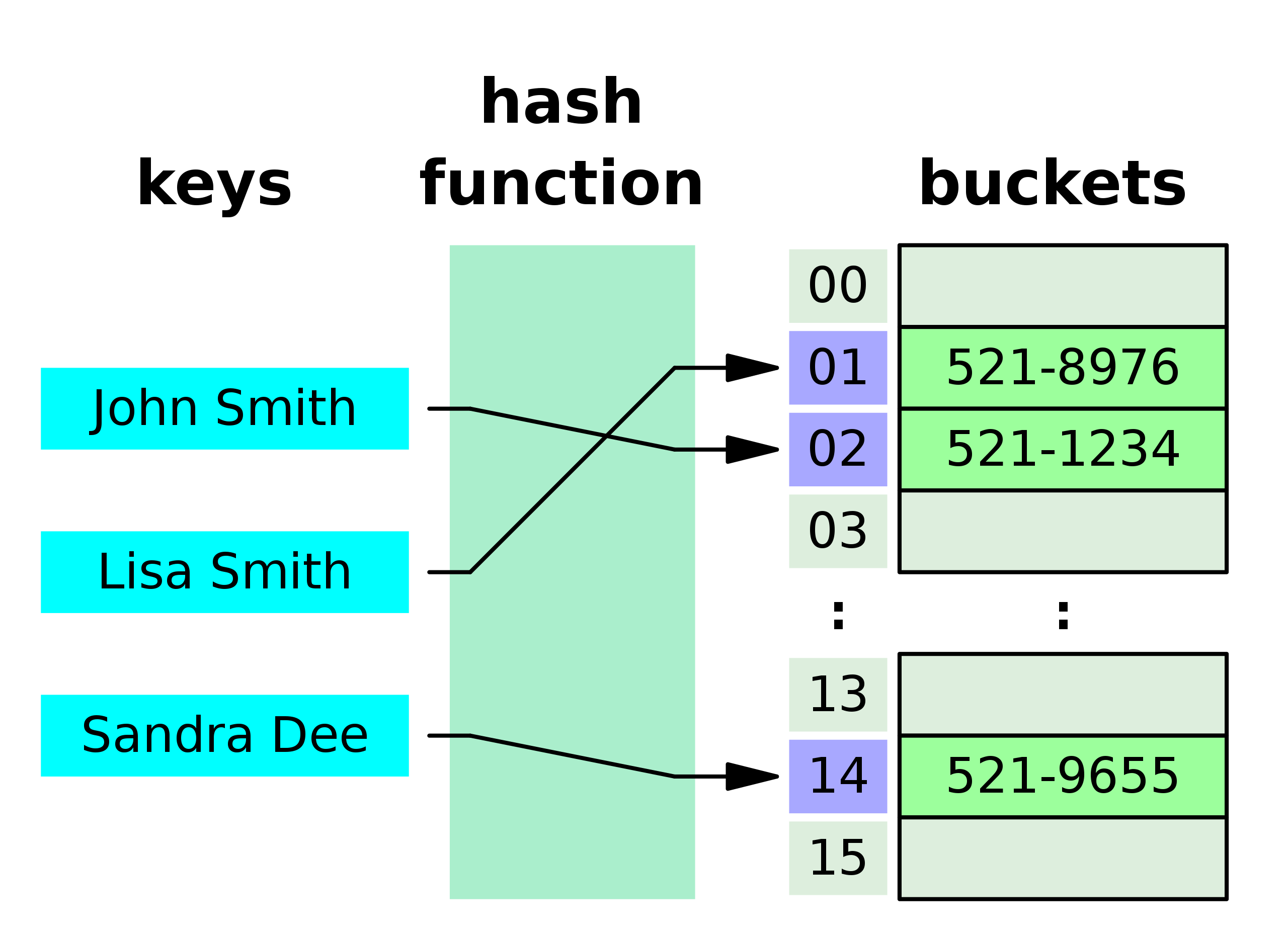
Image credit: Wikipedia
Maps are an elegant way to compensate what Lists and Arrays mutually lack: dynamic extension and rapid access.
Why are the no good performance guarantees for maps ?
Because while unlikely, all entries could have the same hash-value, erasing all advantages of hashed indexing. The map then is no more performant than searching linearly through a list.
Trees
Trees are more complex to implement than Maps, but provide stronger worst-case guarantees on access performance.
- Access is fast, because in a balanced tree the amount of entries exponentially grows with deeper levels, i.e.
navigating to a specific entry happens in
log(n)time. - They are more complex, because adding new elements can lead to an "unbalanced" tree, meaning you have to regularly rearrange elements, to maintain optimal performance.

Image credit: Wikipedia
Text handling
In this segment we'll look at several best practices, related to Strings and the standard library.
StringBuilder
Strings are immutable object, that means every modification to a String object implicitly creates a new object:
- Creating a few object is not an issue, but creating thousands is.
-
A loop with repeated
Stringmodifications can reduce performance:// Modifying a string 100k times takes about 1 second. final int ITERATIONS = 100_000; String str = ""; long start = System.nanoTime(); // Naïve concatenation, with every iteration for (int i = 0; i < ITERATIONS; i++) { str += i; // creates a new String object every time } // Print delay long end = System.nanoTime(); System.out.println("String: " + (end - start) / 1_000_000 + " ms");
Avoid repeated object creation
Java has a built-in class to sidestep this issue: StringBuilder.
The StringBuilder class can "build" (e.g. concatenate) Strings without implicitly creating new immutable objects.
-
A loop with repeated
StringBuildermodifications is significantly faster than theStringcounterpart:// Modifying a stringnbuilder 100k times takes about 2 milliseconds. final int ITERATIONS = 100_000; long start = System.nanoTime(); start =System.nanoTime(); // String concatenation, using StringBuilder.append() StringBuilder sb = new StringBuilder(); for(int i = 0; i<ITERATIONS;i++) { sb.append(i); } // Print delay String result = sb.toString(); end =System.nanoTime(); System.out.println("StringBuilder: "+(end -start) /1_000_000+" ms");
Benchmark:
| Iterations | String (ms) | StringBuilder (ms) |
|---|---|---|
| 10k | 28 ms | 0 ms |
| 50k | 307 ms | 2 ms |
| 100k | 1075 ms | 2 ms |
| 200k | 4140 ms | 3 ms |
| 300k | 9518 ms | 4 ms |
| 1M | (crash) | 15 ms |
Benchmark measured on 2024 MacBook Air 16BG Ram, M3 Processor.
Below visualization of the measured performance shows how the string implementation does not scale. Execution time roughly doubles for every additional 60k string concatenations, i.e. the slowdown is exponential.

Scanner
From input handling you might be used to using
a Buffered reader, wrapping
a String reader to access inputs
originating System.in.
This works, but it is not the most cumbersome solution:
- Buffered readers are intended for generic inputs:
- Must wrap around string-specific reader
- Must dead with corner cases (exceptions, try catch).
-
Result: contrived, boilerplate code:
// Boilerplate code, reading user name and age from console with Buffered/String readers.
// BufferedReader needs to wrap another Reader, in this case InputStreamReader
BufferedReader reader = new BufferedReader(new InputStreamReader(System.in));

    try {
    System.out.print("Enter your name: ");
    String name = reader.readLine(); // readLine() throws IOException

    System.out.print("Enter your age: ");
    String ageInput = reader.readLine(); // still returns a String
    int age = Integer.parseInt(ageInput); // must manually parse

    System.out.println("Hello " + name + ", you are " + age + " years old.");
} catch (IOException e) {
    System.err.println("Error reading input: " + e.getMessage());
}
Avoid reading from console with a Buffered reader.
Reading from console (and text files) is a standard feature, later java versions introduced a useful standard library class, just for this purpose: the Scanner.
- Using the scanner is straightforward, and has a few perks, notably no exception handling needed, and automatic type parsing supported:
// Reading name and age from console, using a scanner.
Scanner scanner = new Scanner(System.in);

System.out.print("Enter your name: ");
String name = scanner.nextLine(); // No IOException handling needed

System.out.print("Enter your age: ");
int age = scanner.nextInt(); // No manual parsing needed

System.out.println("Hello " + name + ", you are " + age + " years old.");
TTY Colours
- While strictly speaking not a java feature, unix terminals have colour support.
- Special string prefixes / suffixes can be used to toggle coloured console output:
| Colour | TTY Code |
|---|---|
| Red | \033[00;31m |
| Green | \033[00;32m |
| Yellow | \033[00;33m |
| Blue | \033[00;34m |
| Magenta | \033[00;35m |
| Cyan | \033[00;36m |
| White | \033[00;36m |
| Default | \033[00;39m |
- Example:
public static void main(String[] args)
{
    System.out.println("\033[00;36m" + "Hello, World!" + "\033[00;39m"));
}
Use a wrapper class to tint your Strings
You can easily define a reusable enum class to wrap any string in any of the default TTY colours, e.g.: TtyColours.CYAN.wrap("Hello, World!")
IDEs
In the best case, an IDE serves as front-end for core programming language and ecosystem features, to increase developer productivity, e.g.:
- Code navigation
- Launch configurations
- Automatic code formatting
- Background code parsing / syntax error detection
- Code improvement suggestions / refactoring
- Code completion
- ...
For a full list of IDE-features, see the corresponding INF2050 lecture. In the following we'll only briefly take a look at the most widespread IDEs for the Java ecosystem.
IDEs don't reduce complexity
IDEs do not reduce complexity, they only speed up tool access. Before you rely on an IDE, learn how to write, compile and execute code just with a basic editor and a command line.
Beyond your standard text editor
It is totally possible to code even large software projects with a basic text editor. However, things get rapidly very inconvenient. For instance, you do not have: syntax highlighting, auto formatting, API suggestions , code navigation, ... and many more.
And what about vim, isn't that an IDE, kind of ?
Vim and emacs are editors, written by developers, for developers. You can totally use them and configure a long list of plugins to obtain something IDE like. However you might end up spending more time configuring your editor, than on your porject. Ok for power users, but in this course we'll stick to a graphical IDE.
Syntax highlighting
A key feature of any IDE is language specific syntax highlighting.
- Java programs must be 100% syntactically correct, otherwise the compiler will reject your code.
- It is too easy to make a little syntax mistake, your program could e.g. be rejected just because you miss a semicolon:
Spot the syntax error: System.out.printl("Hello, World!")
Actually there are 2:
- Correct method call is print or println.
- Missing semicolon after statement.
- Even the most experienced developer makes syntax errors.
- That is why we use assistive tools:
- IDEs have automatic AST analysis to highlight all syntax errors, while you are typing.
- A red marker on the scrollbar indicates a syntax error.
- Hover on the marker or the line to obtain an explanation of the error, e.g.: "Missing semicolon after statement in line 42."
- In some cases, the IDE even suggests a quick fix, which you can apply by a simple click.
Auto code formatting
- Formatting goes beyond syntactical correctness.
- From a compiler's perspective, the two below code snippets are identical, they share the same AST structure:
- Unformatted code:
- Formatted code:
- Most humans would agree that the second sample is easier readable.
- IntelliJ can auto-format code for easier readability
- Mac OS:
Command (⌘) + Option (⌥) + L - Linux / Windows:
Ctrl + Alt + L
- Mac OS:
Eclipse
A dinosaur with many drawbacks, but it's free and covers the basics.
Pro
- Has been there since forever, most developers get somewhat along.
- Reasonable java support.
- Free.
Con
- Tends to self-corrupt.
- Places configurations all over the place (install directory, caches, homedir, without any apparent philosophy or documentation).
- Plugins tend to lock-in project on eclipse ecosystem.
- IDE setup is tedious, can be barely automated and is often unreliable:

Context: I once worked with an academic tool that was so tied to eclipse, it was essentially impossible to use without spending hours of clickling trough eclipse menues. Onboarding of new engineers was highly inefficient and in the end I developed a bash script to auto-configure as much as possible. The biggest issue was that eclipse barely documents where settings are stored on disk so it is mostly a long tedious process of reverse-engineering cluttered install directories.
Jetbrains IntelliJ
Serious java development, professional tools (especially the ultimate version).
Pro
- Tons of extremely useful features for advanced programmers.
- Massive out-of-the-box support for most common java ecosystem tools.
- Rarely corrupts, and has a mechanism to fix corrupted installations.
- Extremely sound documentation and support.
- Free academic licenses.
Con
- The free version misses the most useful features.
- The most powerful features are not obvious to learn.
VS-Code
A widespread, free editor, with tons of plugins available.
Pro
- Free
- Massive community
- Plugins for everything
- Code-server support (The entire IDE can be "Streamed" as webapp form a remote server - no more whatsoever installation needed. Literally any device can be turned instantly into a developer machine !)
Use code server on GitLab
GitLab comes with built-in code-server instance! For smaller changes you can just type "." to obtain an instant browser-based IDE. The UQAM gitlab instance does not allow remote execution, however.
Con
- Does not do much without at least 5 plugins installed.
- Finding the right plugins isn't always obvious.
- Not all plugins are trustworthy.
Literature
Inspiration and further reads for the curious minds:
Here's the link to proceed to the lab unit: Lab 06